Notes · time tracking
One client, several projects: give every hour its own colour
How to split one client's time by project, keep it accurate without thinking about it, and send an invoice that adds up the first time.
Updated 2026-10-27
Your first client hires you for one thing. Then they like the work, and it turns into three: the website, a monthly newsletter, and "can you also look at the app?" It's still one client and one contact person, but it's no longer one job. If all your hours go into a single bucket called the client's name, you'll find out at invoice time that you can't say which hours belonged to which piece of work.
Splitting time by project fixes that. Like a prism turning one beam into separate colours, it takes one client's week and shows you what it was really made of. Here is how to set it up, how to keep it accurate without thinking about it, and why it pays off when you bill.
Why one bucket per client stops working
Tracking time only by client is fine while there's one job. As soon as there are two, it starts causing problems:
- Different prices. The website might be hourly, the newsletter a fixed monthly fee, and the app audit a different rate. Hours in one bucket can't be priced correctly.
- Different people paying. In bigger companies, each project can come out of a different budget or need its own purchase order. One invoice line saying "42 hours" gets sent back.
- Questions you can't answer. "How much of this was the newsletter?" is a fair question from a client. Without project-level time, the only honest answer is a guess.
- Pricing you can't learn from. If you don't know how long the newsletter takes each month, you can't tell whether its fee is fair. That's the whole idea behind your real hourly rate.
How to set up projects
Keep it simple. A project is one piece of work you would describe separately on an invoice. Four rules make the split easy to keep:
- Name projects the way the client talks about them. "App redesign", not "AR-v2". The project name often becomes the invoice line, so it should make sense to the person paying.
- Give each project its own price when it has one. Hourly at the client's usual rate, hourly at a special rate, a fixed price, or not billed at all (for example, a free pitch).
- Don't over-split. "Homepage", "About page" and "Contact page" are tasks inside the website project, not three projects. Put that detail in the note on each time entry instead.
- New work, new project. When the client adds something after the original job is done, start a fresh project instead of piling it onto the old one. Your numbers for the first job stay clean.
A rough test: if you'd send a separate line, a separate quote or a separate invoice for it, it's a project. If not, it's a note.
Getting every hour onto the right project
The setup takes five minutes. The habit is the hard part. Most mistakes come from switching work without switching the clock: you finish a newsletter edit, answer an email about the app, and an hour later realise the timer was still on the newsletter.
Three habits keep it clean:
- Switch the clock when you switch the work, even for a ten-minute email. If switching takes one tap, you'll actually do it.
- Write a short note on each entry ("checkout flow, edge cases"). It costs seconds and answers every later question about what the time was for.
- Review the week before you bill. A weekly timesheet laid out by client and project makes a wrong entry stand out, like a newsletter that took nine hours.
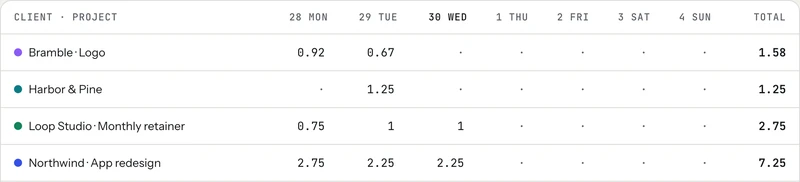
How it works in tab
In tab, each client can have any number of projects. Each project can be hourly, fixed price or not billed, and under More you can set its own rate (otherwise it uses the client's rate) and an estimate in hours. On the Today screen the timer buttons show the client and project together, so starting the right one is a single tap, and tapping another one stops the first at the same second.
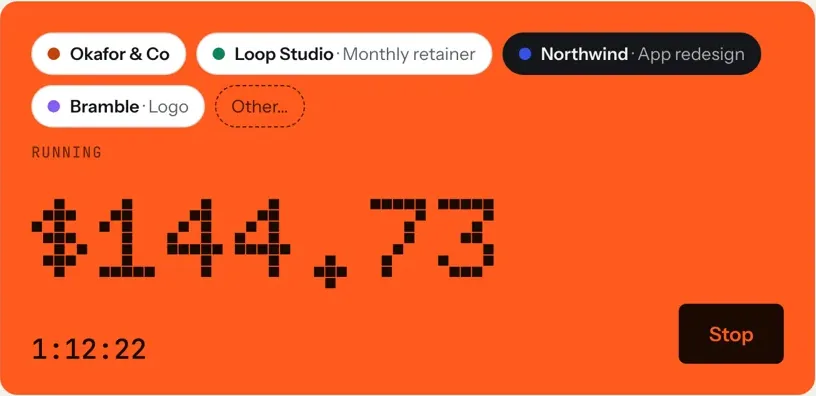
If something lands in the wrong place, you can fix it afterwards: select entries on Today and move them to another client or project, or split one entry at a time when you forgot to switch halfway through. For hours you forgot to track at all, quick add takes plain words with the project in them. More on that in finding unbilled hours.
Project estimates do something useful in the background too: the Money page compares tracked time on each project against its estimate, so you see a job running long while there's still time to talk about it.
Start the clock, no accountSign up free
Why it matters at invoice time
This is where the split pays for itself. When you close the tab for a client, tab builds the invoice lines from the unbilled hours, and you choose how to group them: By project, By day, or Every entry. By project gives one line per project, with its hours and rate:
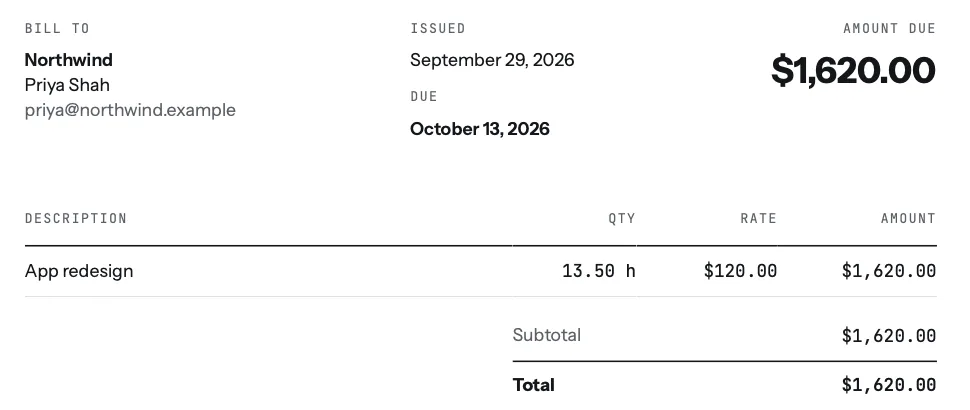
Entries with different rates never share a line, and fixed-price projects are billed by their fee rather than their hours. So a client with an hourly website, a fixed newsletter and a special-rate audit gets one invoice that adds up correctly on the first try. If they ask "how much was the app?", the answer is already on the page.
Not using tab? The timesheet to invoice tool turns hours into line items in your browser, and the free invoice generator makes the invoice itself.
Good records help beyond the invoice
Project-level time is also a record of your business. The IRS says you can use any recordkeeping system suited to your business "that clearly shows your income and expenses," and that good records help you monitor your business and support what you report on your tax return (IRS: Recordkeeping). Hours per project, matched to the invoices they became, is the kind of trail that makes questions easy to answer later, from your client or anyone else.
Checked October 26, 2026. General information, not tax advice.
Start with the next new job
You don't need to sort out past months. The next time a client adds a second piece of work, make it its own project and start tracking it separately. Working for several clients as well? Four clients, one clock shows how the same one-tap switching works across all of them.
Keep reading
 Finding unbilled hoursThe gaps, quick calls and forgotten timers, and a ten-minute Friday check to catch them.
 Freelance working hoursSet your hours, share them once, protect focus time, and see where the week really goes.
 The 15-minute Friday closeHours, client updates, invoices, late payments, tax and Monday: six steps every Friday.
Questions
Should I track time by client or by project?
Both. Every hour belongs to a client, and when a client has more than one piece of work, each piece should be its own project. That way each one can have its own price and its own invoice line.
What counts as a separate project?
Anything you would quote, describe or invoice separately, like a website, a monthly newsletter or an audit. Smaller tasks inside one piece of work are better as notes on the time entries.
Can one client have different rates for different projects?
Yes. In tab a project uses the client's rate unless you set its own rate, and it can also be a fixed price or not billed at all.
What if I tracked time on the wrong project?
Move it. In tab you can select entries and move them to another client or project, or split an entry where you forgot to switch. Billed hours stay locked.
Every hour on the right project.
Add a client, give each piece of work its own project and price, and tap the one you're working on. Free to start, no account to try it.
Start free Try it, no sign-upFree to startNo cardNo screenshots, ever