Notes · time tracking
One hour a week: batching your freelance admin
Collect the small jobs in one tray, book one hour, and work through the same list every week.
Updated 2026-10-27
Every freelancer runs a small back office: invoices to send, payments to check, receipts to file, emails that need a proper answer, taxes to set aside. None of it is hard. The trouble is that it arrives all week in small pieces, and each piece pulls you out of paid work for "just five minutes" that are rarely five.
Batching means collecting those pieces in one place and dealing with them together, at a fixed time. Picture a stack of letter trays on a desk: things go into the in tray as they arrive, and once a week you work through it from top to bottom. For most freelancers with a handful of clients, one hour a week is enough. Here is how to set that hour up and what to do in it.
Why one hour beats thirty small ones
- Less switching. Moving between a design file and your bank app and back costs more than the task itself. Doing all the money tasks together means you only make that switch once.
- Nothing slips. When admin happens "whenever", the tasks that never feel urgent (filing a receipt, checking an overdue invoice) quietly don't happen. A fixed hour with a fixed list catches them.
- Calmer weeks. You stop carrying a running list in your head, because you know when each thing will get done.
Step 1: make one in tray
Batching only works if things wait somewhere you trust. Pick one place for admin to land during the week: a note on your phone, a folder in your email, or a paper tray. When something admin-shaped comes up mid-work, put it there and go back to what you were doing.
- A receipt for software or equipment: forward it to a "receipts" folder.
- A client email that needs a thoughtful reply about scope or price: flag it.
- "I should raise my rate for Loop Studio": write it down.
The rule: if it takes under two minutes and someone is waiting on it, do it now. Everything else goes in the tray.
Step 2: book the hour
Put it in your calendar at the same time each week, ideally late in the week when the hours are mostly in, but not so late that invoices go out after the client has left for the weekend. Thursday afternoon or Friday morning works for many people. Treat it like a client meeting: it doesn't move unless something genuinely more important comes up, and then it moves to a named time, not "later".
Step 3: work through the same list every week
A fixed order means you don't have to think about what to do next. Here is a list that fits in about an hour:
- Hours (10 minutes). Open your timesheet for the week. Look for days with nothing tracked, a client that looks too light, and notes too vague for a client to read. Fix them now while you still remember the week.
- Invoices (15 minutes). Send any invoice that is due: hourly clients on their invoicing rhythm, fixed-price projects that hit a milestone. How to email an invoice has wording if you need it.
- Money in (5 minutes). Check which invoices were paid and which are now late. Record any check or bank transfer you received outside your invoicing tool. Follow up on anything past due (here is a schedule).
- Money out and receipts (10 minutes). File the week's receipts, named by date and vendor, in one folder per year. Freelance record keeping covers what to keep and for how long.
- Tax set-aside (5 minutes). Move a share of what arrived this week into a separate savings account for tax.
- The flagged emails (10 minutes). Answer the replies that needed thought: scope questions, quotes, scheduling.
- Next week (5 minutes). Look at deadlines and block your focus time before anyone else books it.
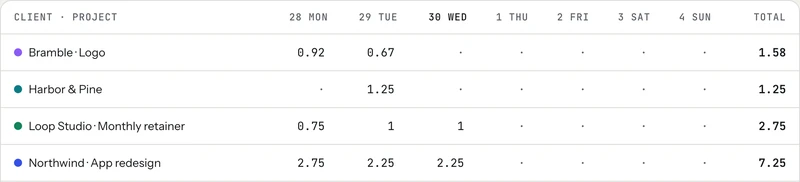
In tab, the timesheet cells are typeable, so a missing hour can be filled in right there, and unbilled hours become an invoice in one step when you close a client's tab. Switching on overdue reminders for a client takes "chase late invoices" off the list: tab emails them from you at 3, 10 and 21 days past the due date, with the pay link.
Monthly and quarterly extras
Some admin doesn't need to happen weekly. Add these to the first admin hour of the month or quarter:
- Monthly: invoice anything that bills once a month, compare what you billed with what you collected, and check what each client really paid per hour. A client whose real rate keeps falling below your rate is worth a conversation. The month-end checklist goes through it.
- Quarterly: US freelancers who expect to owe $1,000 or more in tax for the year generally have to make estimated tax payments (IRS: estimated taxes). For tax year 2026 the payment periods are due April 15, June 15 and September 15, 2026, and January 15, 2027 (IRS estimated tax FAQ). Put the next date in your calendar as part of the admin hour before it.
Checked October 26, 2026. General information, not tax advice.
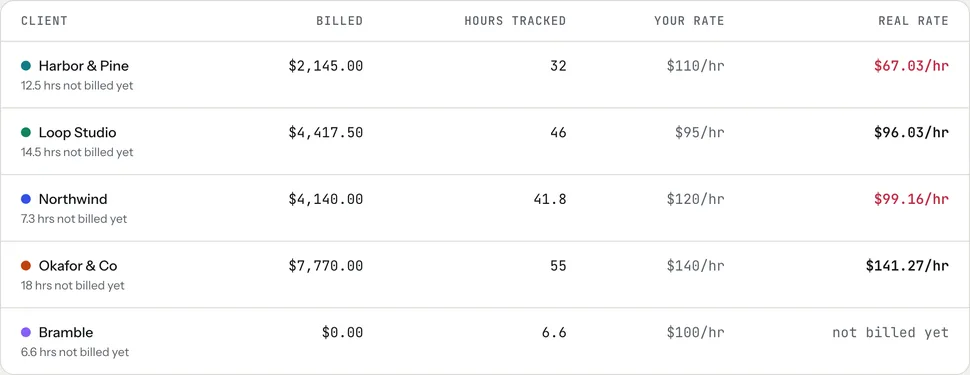
The freelance tax calculator helps you pick a set-aside percentage, and the real rate page explains how the per-client number is worked out.
Track the hour, too
Admin is real work, even if no single client pays for it directly. Track it, so you know what your business costs to run each week. In tab, add your own business as a client with a project set to "Not billed": that time is counted but never lands on an invoice. Over a month you'll see whether admin is a steady hour or quietly turning into three, which is useful when you set your rate: what goes into a freelance rate explains why those hours belong in it.
A note you can paste into your calendar
Keep the list in the calendar event itself, so the hour starts with a plan instead of a blank page.
Keep reading
 Finding unbilled hoursThe gaps, quick calls and forgotten timers, and a ten-minute Friday check to catch them.
 Track time by projectOne client, several jobs: split every hour onto the right project, and bill each one right.
 Freelance working hoursSet your hours, share them once, protect focus time, and see where the week really goes.
Questions
How much time should freelancers spend on admin?
It depends on the number of clients, but for a handful of clients one focused hour a week usually covers hours, invoices, payments, receipts and the emails that need thought. Track it for a month to see your real number.
What admin tasks should freelancers batch?
Checking and fixing the week's hours, sending invoices, checking payments and late invoices, filing receipts, setting aside tax, and answering emails that need a careful reply. Planning next week's focus time fits at the end.
When is the best time for a weekly admin block?
Late in the week, when most of the hours are in, but early enough that invoices reach clients before the weekend. Thursday afternoon or Friday morning works for many freelancers.
Should I track time spent on admin?
Yes. It isn't billed to a client, but it is part of running the business and belongs in your rate. In tab, a project set to Not billed (for example under your own business as a client) counts the time without putting it on an invoice.
Make the admin hour shorter.
Check the week's hours, send invoices in one step, and let tab chase the late ones politely. Free to start, no account to try it.
Start free Try it, no sign-upFree to startNo cardNo screenshots, ever